What different between N5 and G2 characters:
N5 characters are the next generation after G2 characters, they inherit the outstanding features of G2 characters but use UE5 Manny Simple skeleton and 02 secondary bones "clavicle_pec_r" and "clavicle_pec_l" while G2 characters use UE4 skeleton, so they are different in body form as well as how the skeleton works with animations.

Despite these differences, both G2 and N5 can harmoniously coexist within the same project, sharing a majority of resources located in the Common folder directory such as Material Master and Textures. To synchronize animations seamlessly between them, utilizing retarget pose from mesh is key, ensuring a cohesive blend of movements and actions across both character generations.
In Unity N5 characters rigged with Humanoid so it ready working with Humanoid animations and you don't need do anything.
How to using Chaos Cloth assets
Q: Why using Chaos Cloth Asset?
A: Look at this image to see the potential for better optimization for Draw Call
Q: When and Which?
A: With each skeleton mesh asset including cloth physic simulation such as Dress, Cloak .... in curent Cloth Asset not really support Hair Shader so all skeleton mesh including hair card won't using this way.

Of course, this is partly due to the reduced number of Material Sections because of the use of Virtual Textures.

Chaos Cloth assets will have a name starting with CA_ and it will look like this

Examples of using Chaos Cloth
The usage of Chaos Cloth Asset is similar to using Skeleton Mesh in BP_Character; instead of adding Skeleton Mesh, you add Chaos Cloth

Chaos Cloth Asset is still used with Set Leader Pose, similar to Skeleton Mesh.
Using SK_SkeletonMeshABP:
Some skeleton meshes in the package will have "ABP" at the end of their name. These assets still use the N5 character skeleton as usual, but they have additional bones. To activate these additional bones and prevent them from becoming stiff, I added Anim_BP to enable their physical functions.

Anim_BP look like this
The difference when using these skeleton meshes is that you don't link them to Set Leader Pose, because Set Leader Pose would lock the skeleton of the chil skeleton mesh in place and disable the extra bones.
Instructions: You still create the child skeleton mesh below the parent skeleton mesh, but don't link Child to Set Leader Pose. Simultaneously, in the Anim Class section on the right, select ABP_ of this skeleton mesh. This ABP_ will copy the Parent skeleton mesh's Pose, synchronizing the position and animation.

How to using UE5 animations on N5 female characters look more feminine
This video will show you how to adjusting animations directly Unreal Engine:
How to using N5 character with animations or system base on UE5 skeleton
(With Unity N5 characters working with Humanoid animations the same way G2 characters so you don't need to do anything)
To using N5 characters with UE5 skeleton you just need add Compatible Skeleton on SK_UE5Mannequin_Skeleton with SK_N5Human_Skelton and opposite.
 Add compatible SK_Mannequin skeleton with SK_N5Human_skeleton
 Add compatible SK_N5Human_skeleton with SK_Mannequin skeleton
Then save, after this action, all animations will sharing between them and you can swapping N5 characters with UE5 Mannequin.
Blending color on Skin, Hair, Eye, Clothes and more:
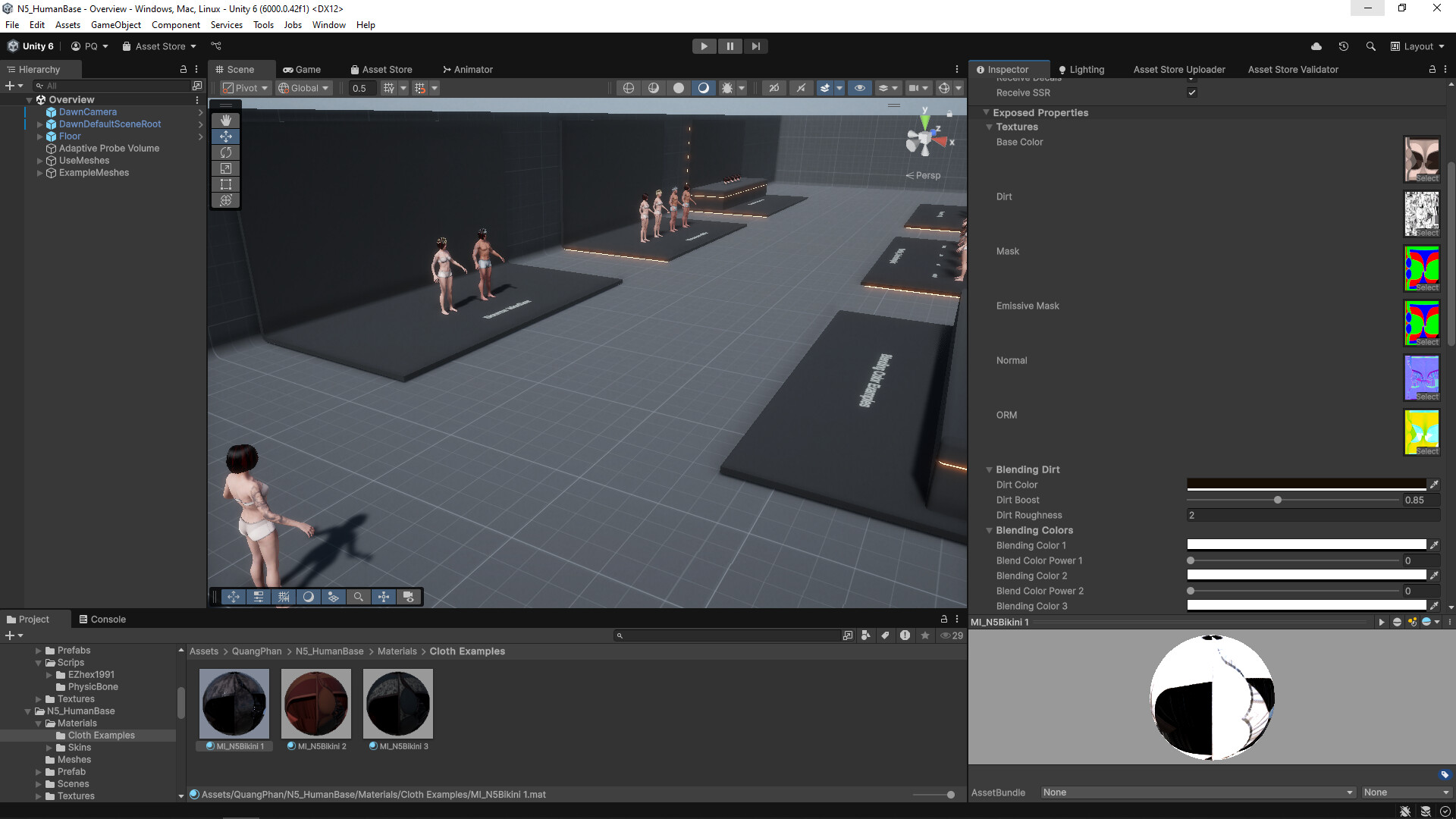
Explore a world of customization where nearly every part of the character can transform in color and emit light. Unlock the potential by simply accessing the character's current material, adjusting hues and intensities to craft a unique essence that resonates with your vision. Delve into a seamless experience as the customizable sections are meticulously organized and annotated, ensuring a user-friendly journey through the realms of creativity and personalization.



Thank you for your past and ongoing support, it's a great source of motivation for me to strive and create continuously. I am committed to delivering the best products for you, and I hope that you will continue to accompany me, share your passion, and explore together on this journey!
My stores: ⭐FAB ⭐Asset store ⭐Artstation store ⭐CGTrader store


